
Walk Up Music App: How to Search, Preview, and Add (Under 2 Minutes)
Baseball walk up songs: A fast workflow for using a walk-up music app: search the Pros Playlist, preview the track, and add it to your players.
Patrick Taylor
Most teams don't need a complicated process—they need a fast one. If you're using a walk up music app to set walk-up songs before games, this workflow keeps you moving: search, preview, add, and repeat without losing your rhythm.
The fast 2-minute workflow
- Open the app and go to your roster Tap a player who needs a song (or whose song you want to change).
- Choose Select walk-up song This brings you into the song picker for that specific player.
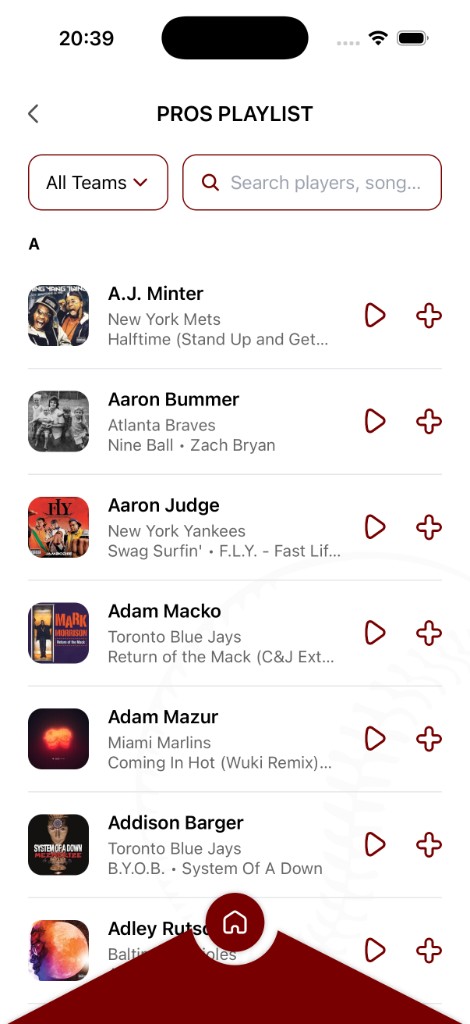
- Start with Pros Playlist It's curated to match real walk-up energy, so you waste less time.
- Search by song or artist If you know the vibe (or the player), search the exact track name or artist.
- Preview once, then add Use play to confirm the intro and overall vibe. When it feels right, tap + to assign it.
How to add these to your team in the app
Pick the player from your roster.
Select Select walk-up song.
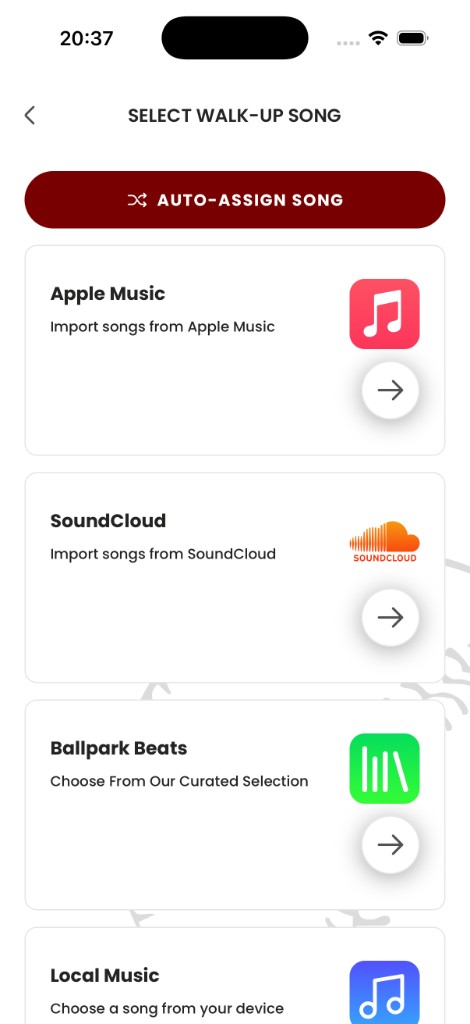
Open Pros Playlist.
If you need a specific track, tap Apple Music and search by song or artist.
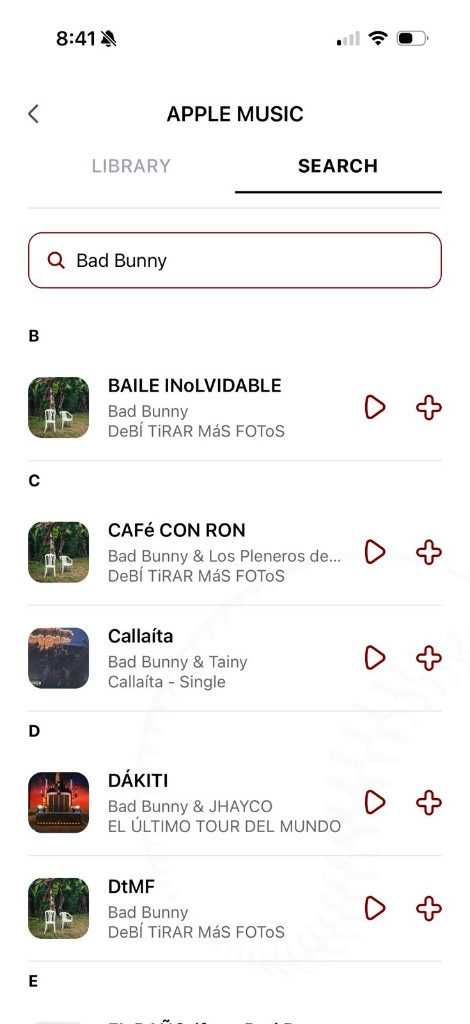
Preview, then tap + to assign the song.
Once you get the rhythm, setting walk-up songs becomes part of your pre-game routine instead of a chore.
Ready to bring your walk-up songs to life?
Download the Baseball Walk-Up Songs app and take your team's game-day experience to the next level.
Get the app