
Baseball Walk-Up Songs App: How to Choose and Add Songs (Step-by-Step)
Baseball walk up songs: A step-by-step guide to choosing walk-up songs and adding them to players in the Baseball Walk-Up Songs app.
Patrick Taylor
Want your team's walk-up music to hit like the big leagues? A walk-up songs app helps you do that quickly: you find a track, preview it, and assign it to the right player. This guide walks you through the exact flow from “open the app” to “music ready for first pitch.”
Step-by-step: choose and add walk-up songs
Open the app and start with your team roster If the players you are using aren't in the app yet, add them first so every song you choose has a place to go.
Tap a player to set (or change) their walk-up song Look for the option that says Select walk-up song.
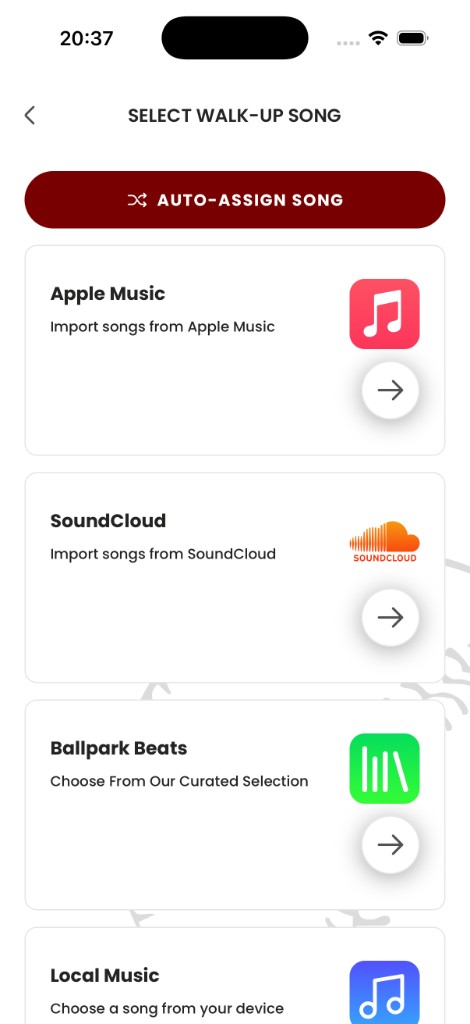
Use Pros Playlist to find songs fast Instead of hunting through random playlists, start with the app's curated Pros Playlist.
If you already know the exact track you want, you can also jump into Apple Music and search by song or artist.
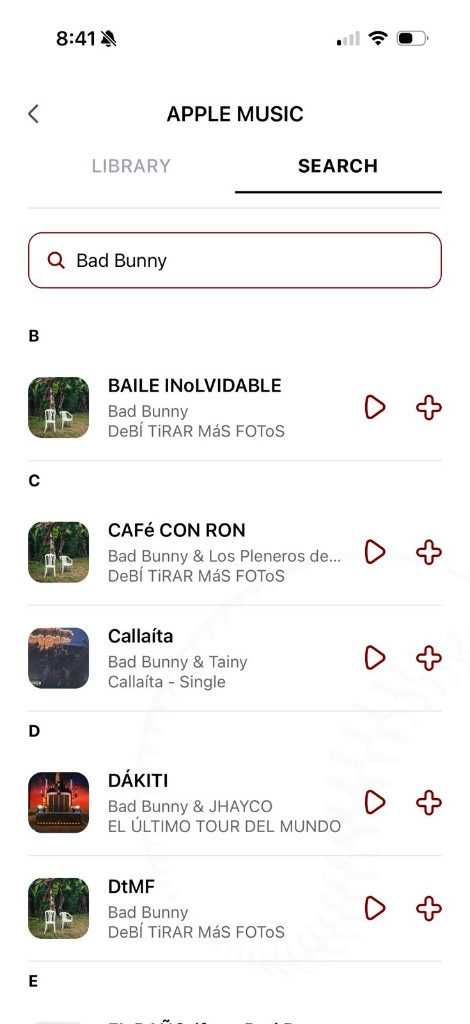
Preview before you commit Use the play button to confirm the intro and vibe you want for your game-day moment.
Assign with the + button When the song is right, tap + to lock it in for that player.
How to add these to your team in the app
- Open the team roster and tap the player name.
- Select Select walk-up song.
- Find the song in Pros Playlist (search or scroll) or tap Apple Music and search by song/artist.
- Preview, then tap + to assign the track.
Once you've set songs for your lineup, you're not just picking music—you are building the tone of your entire game.
Ready to bring your walk-up songs to life?
Download the Baseball Walk-Up Songs app and take your team's game-day experience to the next level.
Get the app