Baseball Game App: Pre-Game Setup Checklist (When to Add/Play + Speaker Tips)
Baseball walk up songs: A coach/parent checklist for setting walk-up songs in the app: when to add songs, when to preview, and what to test before first pitch.
Patrick Taylor
Walk-up music only works when it is ready to go at the right moment. If you're using a baseball game app to run game day, this checklist will help you set songs for starters and the bullpen, preview audio once, and avoid last-minute scramble.
The pre-game setup checklist
- Build or open your team roster Make sure your players are in the app so every walk-up has a destination.
- Assign songs for starters first Choose the walk-up songs you want for the top of the lineup, then double-check that each player has the right song selected.
- Add bullpen (closer/setup) songs If you know who is most likely to pitch in high-leverage moments, assign them now so your rotation stays smooth.
- Preview once to confirm the sound Hit play for the songs you are using today. This is the fastest way to catch “too quiet” songs before it matters.
- Do one last quick test Run through a couple of key players (leadoff and a big-inning hitter). If your audio is working, you are set.
How to add these to your team in the app
Open your team in the app and tap the player you want to set.
Choose Select walk-up song.
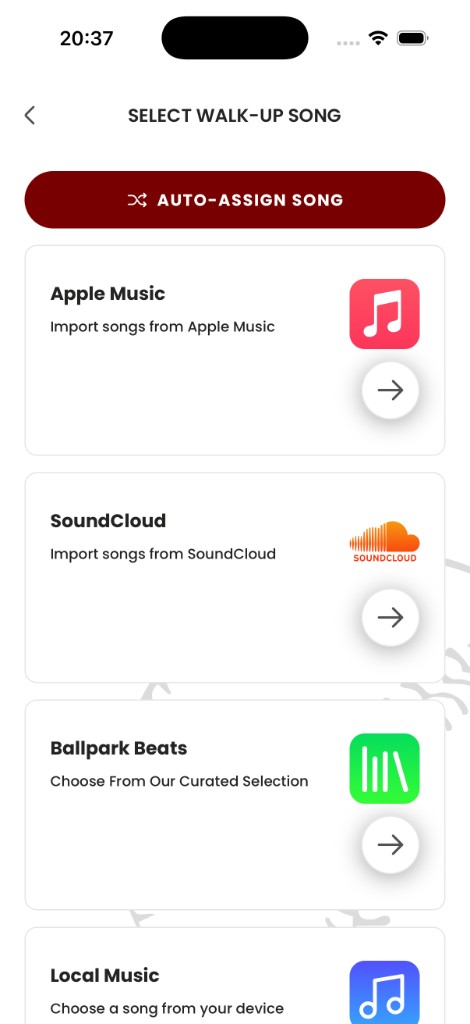
Use the Pros Playlist to find the song fast, then tap to preview it.
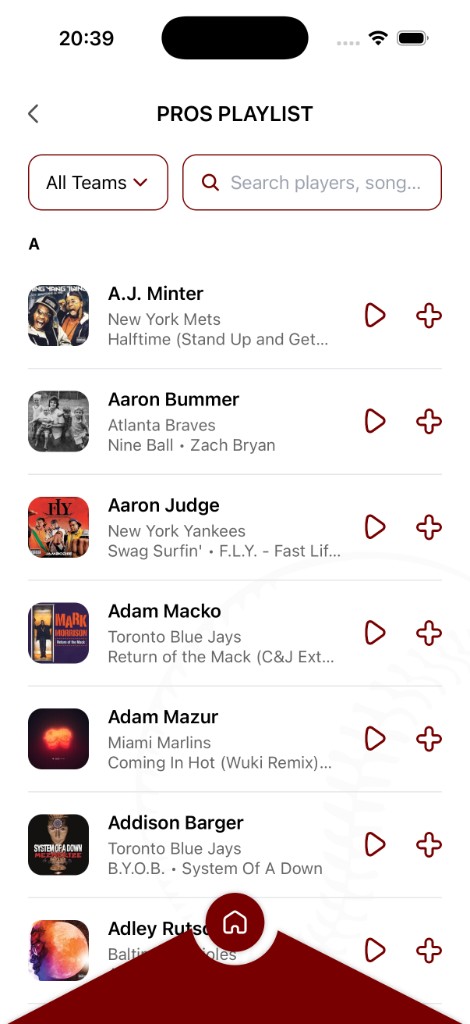
Tap + to assign it to that player.
Repeat for the rest of your lineup.
If you keep this routine, your walk-up music becomes a consistent advantage instead of a stressful last-minute task.
Ready to bring your walk-up songs to life?
Download the Baseball Walk-Up Songs app and take your team's game-day experience to the next level.
Get the app